
To get started with an X API for data analysis, choose a provider, generate API keys, and use Python to fetch and analyze returned posts. Here's a quick summary:
- Set Up Developer Access:
- Create a Twitter Developer account.
- Choose the access level: Standard or Academic Research (offers full historical data).
- Generate API credentials: API Key, API Secret, and Bearer Token.
- Or skip developer approval: the Desearch X API needs only an API key (Python example in Step 2).
- Install Required Libraries:
- Use Python libraries like
requestsortwarc2for API interaction. - Install additional libraries like
pandasfor processing andnltkfor sentiment analysis.
- Use Python libraries like
- Fetch Data with API Requests:
- Use endpoints like
search/recentto retrieve tweets based on keywords, hashtags, or filters (e.g., language, excluding retweets). - Authenticate requests with your Bearer Token.
- Handle JSON responses and convert them into structured formats like DataFrames.
- Use endpoints like
- Analyze and Visualize Data:
- Use libraries like
pandasto clean and structure data. - Perform sentiment analysis or track trends over time.
- Visualize results with tools like
MatplotliborSeaborn.
- Use libraries like
- Scale and Automate:
- Automate data collection with scripts or tools like
Tweepy. - Use advanced features like full-archive search for historical analysis.
- Integrate with AI or machine learning workflows for deeper insights.
- Automate data collection with scripts or tools like
The Twitter API is a powerful tool for current and historical social media analysis. Start small, refine your queries, and expand your projects as you gain experience.
Step 1: Set Up Your Twitter API Access
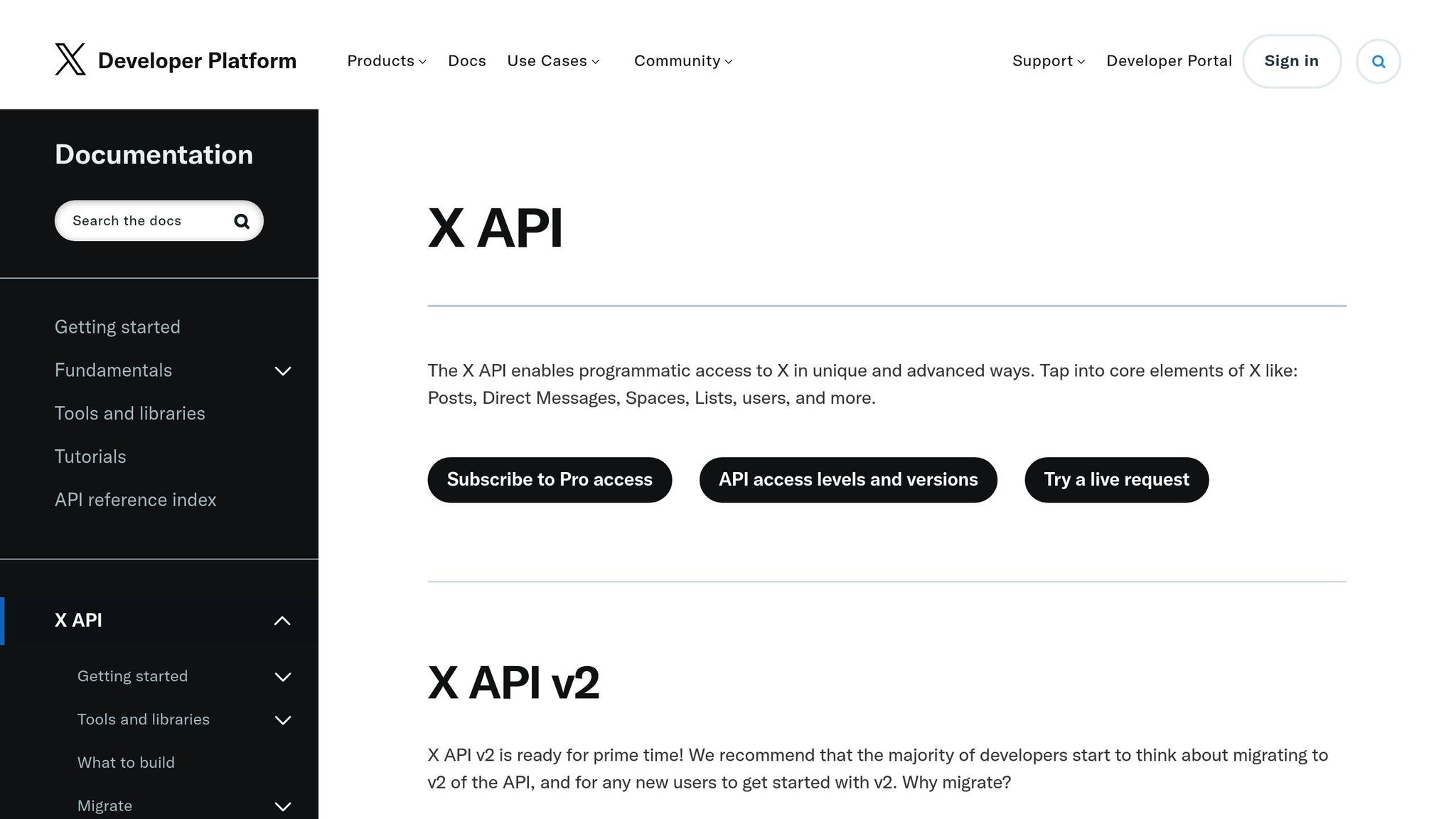
To start working with Twitter's data streams, you'll need to generate credentials through the Twitter Developer Portal.
Create a Twitter Developer Account
First, make sure you have an active Twitter account. If you don't, create one - it will serve as your identity within the developer ecosystem.
Twitter offers two main account tracks: the Academic Research track, which provides full historical data access for researchers, and the standard account, which is designed for recent and current data access for general users.
When applying for a developer account, be clear and detailed about your project's purpose and goals. Avoid vague descriptions, as they can lead to delays in approval. Once your application is approved, you'll be ready to generate the API keys and tokens necessary for accessing the Twitter API.
Generate API Keys and Tokens
After your account is approved, head to the Developer Portal to create your first app. This is where you'll generate your API key, API secret, and Bearer Token - the credentials needed to authenticate your requests to the Twitter API.
Be sure to copy and securely store these credentials immediately, as the API secret will only be visible once. To keep them safe, never share your credentials. Instead, store your Bearer Token as an environment variable by running this command in your terminal:
export BEARER_TOKEN="ADD_YOUR_BEARER_TOKEN_HERE"Then, you can access the token in your Python scripts using:
os.environ.get("BEARER_TOKEN")Lastly, configure your app's permissions. Navigate to App Settings → User Authentication Settings → Edit. For most data analysis projects, setting permissions to "Read" will suffice. However, if your project involves posting or modifying content, select "Read and Write."
Step 2: Make Your First API Request
Now that you've got your credentials ready, it's time to dive into the Twitter API and start pulling data. This involves installing a few Python libraries and writing a basic script to fetch tweets.
Install Required Libraries
To interact with the Twitter API, you'll need the requests library for making HTTP calls. If you want a more Twitter-focused tool, you can use twarc2. Here's how to get started:
-
Install
requestswith:pip install requests -
For a smoother experience with Twitter-specific tasks, install
twarc2:pip install twarc --upgrade
Additionally, you'll use Python's built-in json library to handle JSON data and os to manage environment variables.
Write Your First API Query
Once the libraries are installed, you can set up a Python script to send an authenticated GET request to the Twitter API. For example, let's fetch tweets that mention "heat pumps." This query will use the endpoint https://api.twitter.com/2/tweets/search/recent and include parameters like:
query: Searches for tweets containing '("heat pump" OR "heat pumps")', limits results to English (lang:en), and excludes retweets (-is:retweet).tweet.fields: Specifies the fields to retrieve, such asid,text,author_id, andcreated_at.max_results: Limits the number of tweets returned (e.g., 10).
Here's how to set up your script:
-
Import the libraries:
PYTHONimport requests import json import os -
Retrieve your Bearer Token:
PYTHONbearer_token = os.environ.get("BEARER_TOKEN") -
Define the API endpoint and query parameters:
PYTHONendpoint_url = "https://api.twitter.com/2/tweets/search/recent" query_parameters = { "query": '("heat pump" OR "heat pumps") lang:en -is:retweet', "tweet.fields": "id,text,author_id,created_at", "max_results": 10 } -
Set up the authentication headers:
PYTHONheaders = {"Authorization": "Bearer {}".format(bearer_token)} -
Send the API request and handle the response:
PYTHONresponse = requests.request("GET", url=endpoint_url, headers=headers, params=query_parameters) if response.status_code == 200: json_response = response.json() print(json.dumps(json_response, indent=2)) else: print(f"Request failed with status code: {response.status_code}")
When the request is successful (status code 200), you'll receive a response containing a data key with tweet objects and a meta key with metadata like result_count. If you encounter errors (e.g., 400 or 401), double-check your Bearer Token and query syntax.
"Well-defined rules are the key to collecting quality Twitter data within your maximum number of tweets".
Start with straightforward queries, review the data you get back, and adjust your parameters to fine-tune the results.
Get a Specific User's Tweets (get_user_tweets)
Many workflows start from an account rather than a keyword, for example tracking a competitor, a founder, or a news source. Tools and agent frameworks often expose this as a get_user_tweets function. With the official X API v2 it takes two calls: resolve the username to a user ID, then request that user's timeline.
import os
import requests

BEARER_TOKEN = os.environ["BEARER_TOKEN"]
HEADERS = {"Authorization": f"Bearer {BEARER_TOKEN}"}

def get_user_tweets(username, max_results=100):
    # 1. Resolve the username to a numeric user ID
    user = requests.get(
        f"https://api.twitter.com/2/users/by/username/{username}",
        headers=HEADERS,
    ).json()
    user_id = user["data"]["id"]

    # 2. Fetch the user's most recent posts
    response = requests.get(
        f"https://api.twitter.com/2/users/{user_id}/tweets",
        headers=HEADERS,
        params={
            "max_results": max_results,  # 5-100 per page
            "tweet.fields": "created_at,public_metrics,lang",
            "exclude": "retweets,replies",
        },
    )
    response.raise_for_status()
    return response.json().get("data", [])

tweets = get_user_tweets("XDevelopers")
print(len(tweets), tweets[0]["text"] if tweets else "no posts")
The response is paginated. Pass the returned meta.next_token as pagination_token to fetch older posts. The result is a list of dictionaries, so it drops straight into the DataFrame workflow in Step 3.
Get a User's Posts Without a Developer Account
If you'd rather not apply for X developer access or manage bearer tokens, the Desearch X API returns a user's timeline with a single API key from Desearch Console. Call GET /twitter/user/posts with the username directly, with no separate user-ID lookup.
import os
import requests

API_KEY = os.environ["DESEARCH_API_KEY"]

def get_user_tweets(username, cursor=None):
    response = requests.get(
        "https://api.desearch.ai/twitter/user/posts",
        headers={"Authorization": API_KEY},
        params={"username": username, "cursor": cursor},
    )
    response.raise_for_status()
    print("Request cost (USD):", response.headers.get("X-Desearch-Cost-Usd"))
    data = response.json()
    return data["tweets"], data.get("next_cursor")

tweets, next_cursor = get_user_tweets("XDevelopers")
print(len(tweets), tweets[0]["text"] if tweets else "no posts")
Each post includes id, text, created_at, and engagement counts such as like_count, retweet_count, and reply_count. Pass next_cursor back as cursor to page through older posts. X Search is billed at $0.15 per 1,000 posts (reference rate as of 7 May 2026, see pricing), and every billable response reports its exact cost in the X-Desearch-Cost-Usd header. The list of posts drops into the same DataFrame workflow in Step 3.
Step 3: Process and Analyze Twitter Data
Once you've fetched data from Twitter, the next step is to process and analyze it to uncover meaningful insights. After pulling tweets via the API, the first task is to convert the raw JSON data into a format that's easier to work with, like a Pandas DataFrame.
Converting JSON Data into a DataFrame
Twitter API v2 responses come as dictionaries with a data key that holds the tweet information. To make this data usable, you can use the pandas.json_normalize() function to flatten the nested structure. Here's how you do it:
from pandas import json_normalize
import pandas as pd

# Assuming json_response is your parsed API response
df = json_normalize(json_response, 'data')
This will give you a structured DataFrame where each row corresponds to a tweet, and columns include fields like id, text, author_id, and created_at. With this organized table, you're ready to dig deeper into the data.
Basic Data Analysis
With your data in place, you can start analyzing it for trends and patterns. For example, you could calculate how many tweets each author has posted using:
df['author_id'].value_counts()You can also explore the most frequent words in the tweets. For sentiment analysis, the VADER tool from the NLTK library is a great option for analyzing social media text. Install it using pip install nltk and then apply it to your dataset:
from nltk.sentiment.vader import SentimentIntensityAnalyzer

sia = SentimentIntensityAnalyzer()
df['sentiment'] = df['text'].apply(lambda x: sia.polarity_scores(x)['compound'])
The compound score ranges from -1 (very negative) to +1 (very positive), giving you a quick snapshot of the overall sentiment of each tweet.
Visualizing the Data
Visualizations are essential for spotting trends and presenting your findings. Libraries like Matplotlib and Seaborn make it easy to create compelling charts:
import matplotlib.pyplot as plt
import seaborn as sns

sns.set()
df['sentiment'].hist(bins=20)
plt.xlabel('Sentiment Score')
plt.ylabel('Number of Tweets')
plt.title('Distribution of Tweet Sentiment')
plt.show()
This histogram can help you see whether the sentiment of your dataset leans positive, negative, or neutral. To explore time-based trends, you could plot tweet volume over time using:
df.groupby('created_at').size().plot()For other insights, bar charts are great for comparing hashtag usage, while box plots can highlight outliers in metrics like likes or replies. And if you're looking for more interactive visualizations, consider using tools like Plotly or Dash.
Step 4: Scale to Advanced Workflows
Once you've got the hang of basic retrieval and analysis, it's time to level up. Advanced workflows allow you to handle larger datasets, automate repetitive processes, and streamline your Twitter data projects. This step builds on the foundational skills covered earlier, helping you take your projects to the next level.
Query Historical Data and Apply Filters
With the Full-archive search endpoint, you can access Twitter's entire public history, starting from the very first tweet in 2006. This feature is available through the Academic Research access level, which is free but requires a detailed application.
To refine your searches, use precise operators. For example, lang:en narrows results to English-language tweets, and -is:retweet excludes retweets. Combine conditions with logical operators like OR and AND. In December 2022, Sofia Pinto showcased this approach by collecting tweets mentioning "heat pump" or "heat pumps" with the following query:
("heat pump" OR "heat pumps") lang:en -is:retweetShe used the provider's pagination token and selected only the fields required by the analysis. Before running a larger collection, check the current rate-limit guidance, test the query on a small sample, and handle throttled or partial responses explicitly.
These techniques lay the groundwork for developing fully automated systems.
Build Automated Tools with the API
Once you're comfortable with advanced querying, the next step is automation. Automation turns manual scripts into robust systems that run on their own. For instance, you can set up loops to track specific keywords or hashtags over time or use webhooks to get live updates for events like mentions or direct messages.
For developers working with AI workflows, tools like LangChain and n8n simplify the integration process. You can also connect Twitter data to BI platforms or data warehouses like BigQuery or Snowflake to create dashboards. Libraries such as Tweepy make handling rate limits, pagination, and streaming data straightforward. For continuous monitoring, asynchronous streams are much more efficient than polling.
Conclusion: Getting Started with the Twitter API
If you've followed the steps outlined earlier, you're ready to dive into the world of Twitter's API. From setting up your account to creating automated workflows, you've unlocked a tool that offers direct access to Twitter's data - perfect for tasks like custom analytics, sentiment analysis, competitive monitoring, and connecting with business intelligence tools. For AI agents that need fresh public X data without separate developer approval, see the Desearch X Search API.
The best way to begin? Start small and build from there. Focus on crafting clear, well-structured queries tailored to your specific needs. Gather some initial data, analyze the results, and adjust your approach as you learn more. Fine-tuning your queries helps you avoid irrelevant information and improves the quality of your data over time. This hands-on process will not only sharpen your data analysis skills but also help you create smarter, more targeted strategies for data collection.